Connect Zeno Household to ChatGPT
You add Zeno as a plugin in ChatGPT on the web, sign in to Zeno, and choose what ChatGPT may do. After that it's in every chat, in the phone app too.
Before you start
- A Zeno Household account at app.zenonest.com, with your email confirmed.
- A paid ChatGPT plan, and a web browser at chatgpt.com. The ChatGPT phone app can't add a plugin, but once it's added it works there too.
- Our logo, so Zeno doesn't show up as a blank square: download zeno-household-icon.png (256 × 256, 3 KB). ChatGPT only takes a PNG of 10 KB or less, which is why we made this one.
Step 1: Open Add custom MCP server
Go to chatgpt.com/plugins (or Plugins in the sidebar). Select Add at the top right, then Add custom MCP server.
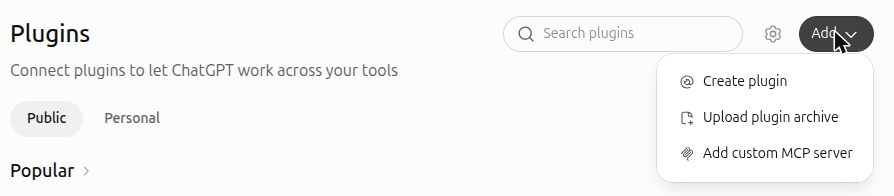
On a phone the menu can open partly off the screen. Turn the phone sideways before you tap Add, or use a computer if one is handy.
No Add button? Turn on Developer mode under Settings → Plugins first. On a Business or Enterprise workspace, an admin has to allow custom MCP servers before you'll see it.
Step 2: Fill it in
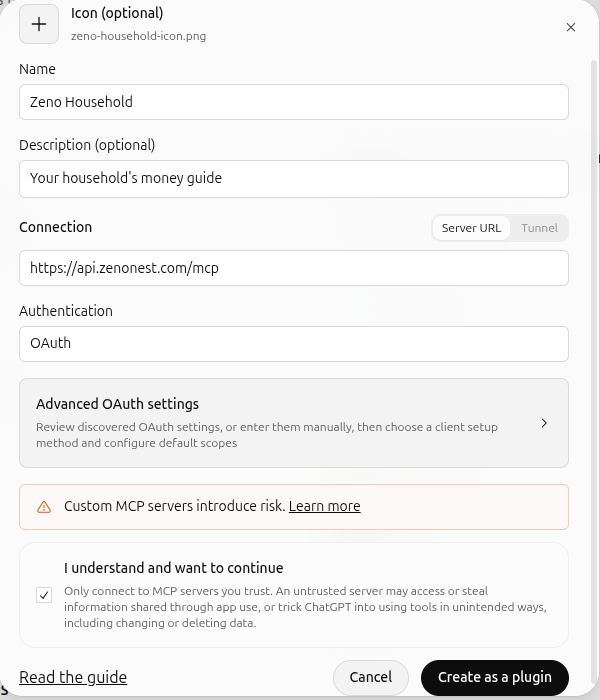
| Icon | Select + and choose the zeno-household-icon.png you downloaded |
|---|---|
| Name | Zeno Household |
| Description | Your household's money guide |
| Connection | Server URL, then https://api.zenonest.com/mcp |
| Authentication | OAuth (leave Advanced OAuth settings closed) |
Tick I understand and want to continue, then select Create as a plugin.
Step 3: Sign in and approve
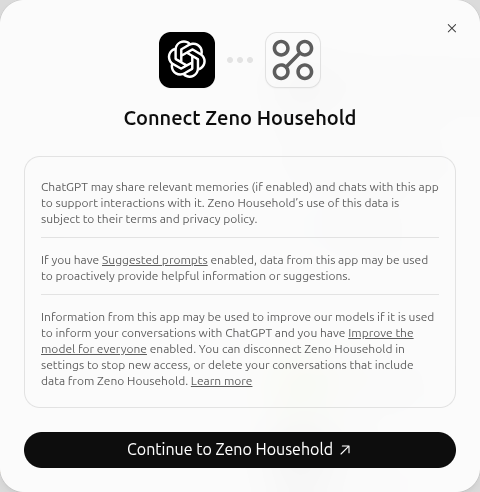
Select Continue to Zeno Household.
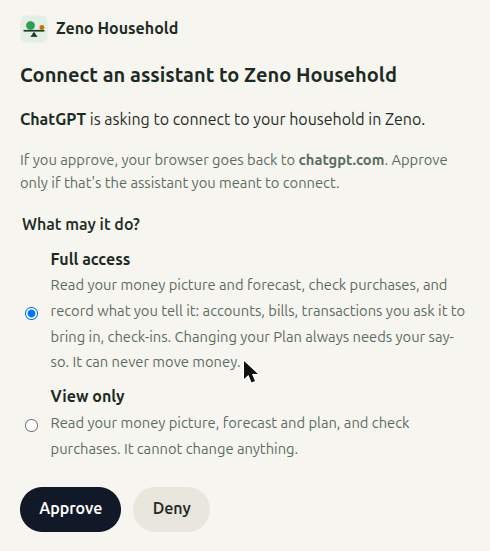
Sign in to Zeno if it asks. Choose Full access, or View only if ChatGPT should only read, then select Approve.
You're back in ChatGPT, and Zeno Household is listed under Plugins → Personal.

Step 4: Ask ChatGPT
Start a new chat and type @Zeno, then pick Zeno Household from the list. Ask something only Zeno knows, such as "What does next month look like for my household?" New to Zeno? Say "Let's set up my household in Zeno."

If something goes wrong
- "An app with this name already exists." Zeno was added before. Uninstalling it doesn't remove it: go to Plugins → Personal, open the old Zeno Household, and either select Install plugin to use it again, or ⋯ → Delete plugin and start over at Step 1.
- Zeno shows as a blank square. It was added without the icon. Delete it under Plugins → Personal (⋯ → Delete plugin) and add it again with the icon.
- ChatGPT won't take the icon. It accepts only a PNG of 10 KB or less. Our usual logo is too big, so use zeno-household-icon.png.
- Zeno says your email isn't confirmed. Open the link we sent when you signed up, then connect again.
- ChatGPT doesn't use Zeno. Type @Zeno and pick Zeno Household, or say "Using Zeno Household, …"
- You want to disconnect. Select Revoke next to ChatGPT under Settings → Your assistants in the Zeno app. It stops working at once.
Still stuck? Write to support@zenonest.com, and a person will answer.
Using a different assistant?
Share money with a partner? Each of you can use your own assistant, and you'll both see the same household.