Assistants · Gemini
Connect Zeno Household to Gemini
You add Zeno as a custom connector in Gemini on the web, sign in to Zeno, and choose what Gemini may do.
Before you start
- A Zeno Household account at app.zenonest.com, with your email confirmed.
- Gemini on the web at gemini.google.com.
Step 1: Add Zeno as a custom app
- In Gemini's sidebar, choose More, then Customize.
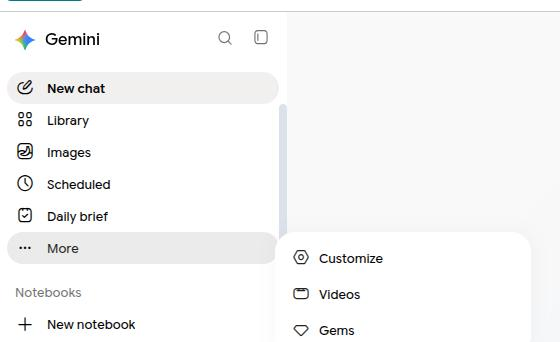
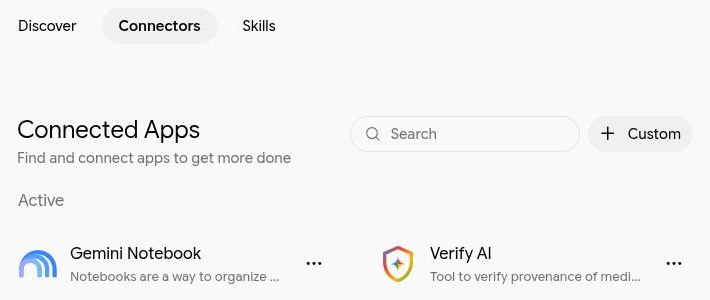
- Open the Connectors tab and choose + Custom.
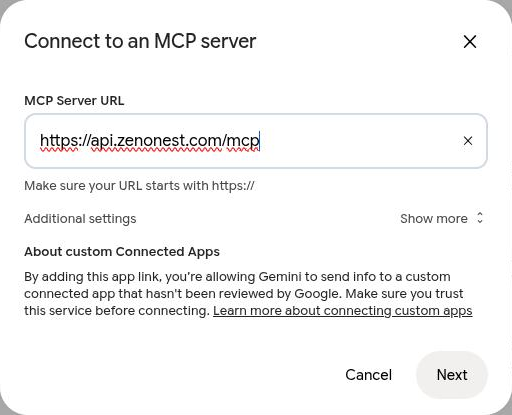
- For MCP Server URL, enter
https://api.zenonest.com/mcpand choose Next.
Step 2: Sign in and approve
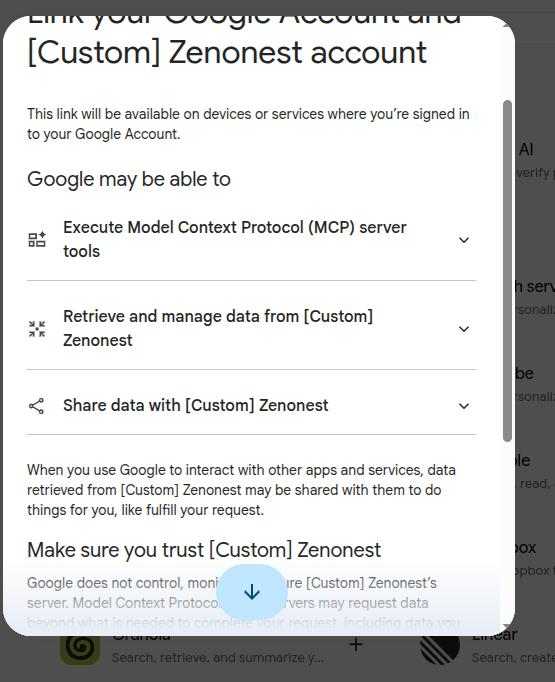
- Google asks you to link your Google Account with the custom app, named [Custom] Zenonest. Read it, then continue.
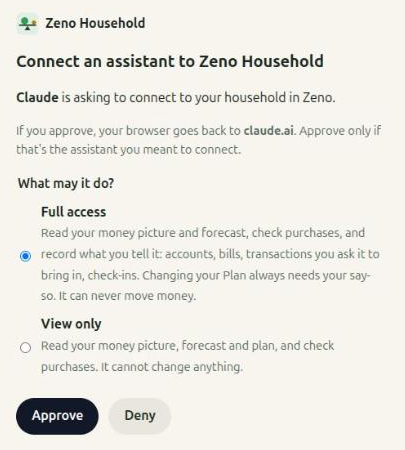
- Zeno opens. Sign in if it asks you to. Choose Full access, or View only if Gemini should only read, then choose Approve.
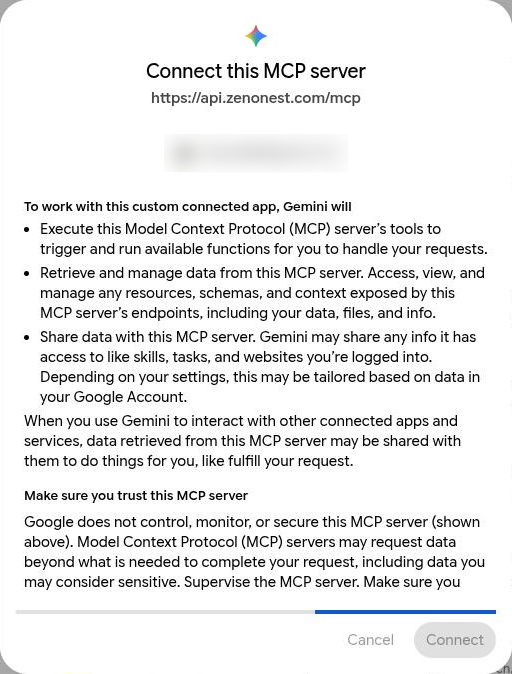
- Back in Gemini, it explains what a custom MCP server can do. Scroll to the end of the notice, and Connect becomes available. Choose it.
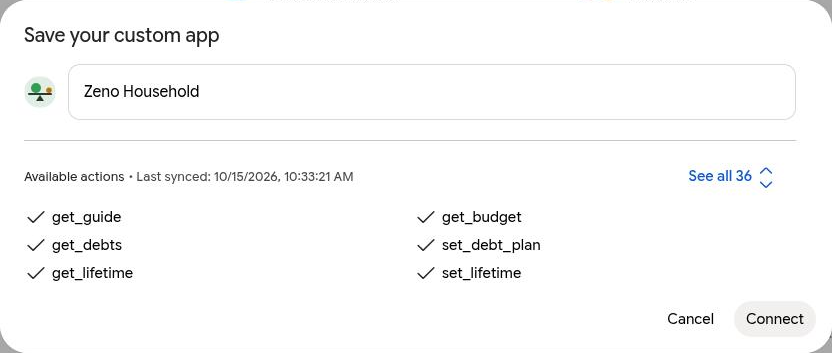
- Gemini lists Zeno's actions under the name Zeno Household. Choose Connect again to save it.
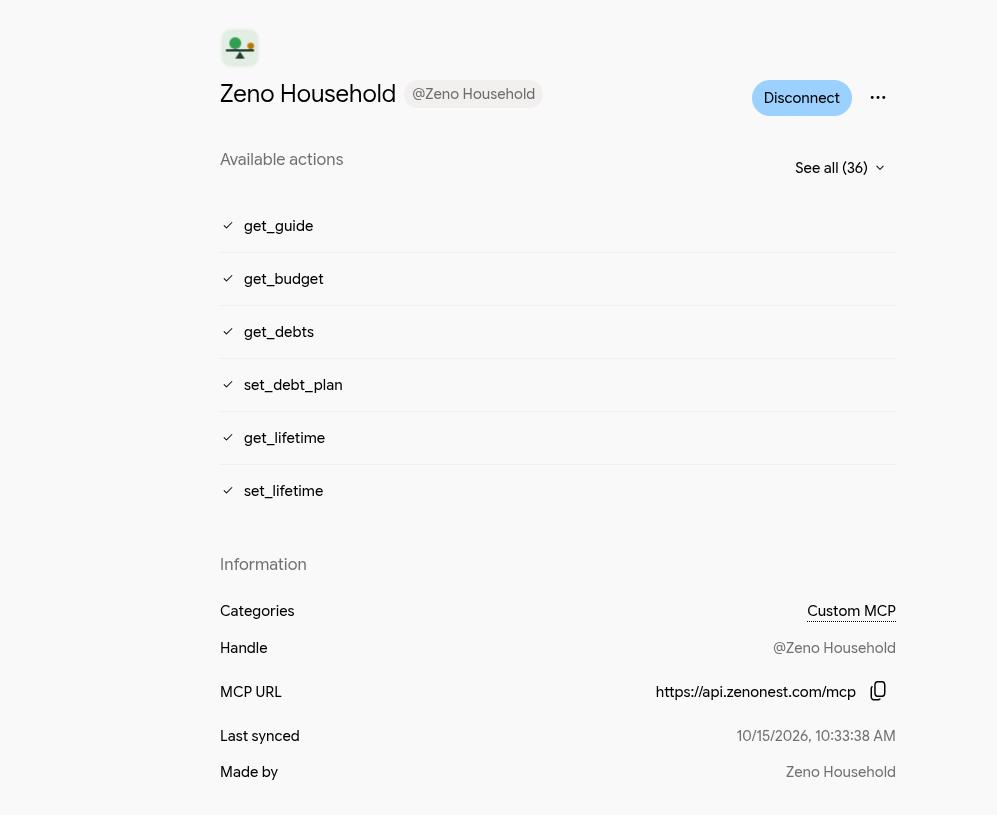
- You're connected. Zeno Household shows under Connected Apps, with its actions and its handle, @Zeno Household.
Step 3: Talk to Gemini
Start a new chat, type @Zeno Household, and say "Let's set up my household in Zeno." Once you're set up, try "What does next month look like?" Gemini calls Zeno and answers from your own numbers.
If something goes wrong
- Zeno says your email isn't confirmed. Open the link we sent when you signed up, then connect again.
- Gemini doesn't use Zeno. Mention @Zeno Household in your message.
- You want to disconnect. Choose Revoke next to Gemini under Settings → Your assistants in the Zeno app. It stops working immediately.
Your bank connects to your assistant, not to Zeno. Zeno never asks for your bank login. Without a bank connection, Zeno works from the accounts and amounts you tell Gemini.
Still stuck? Write to support@zenonest.com, and a person will answer.
Same household, any assistant
Using a different assistant?
Share money with a partner? Each of you can use your own assistant, and you'll both see the same household.
Claudeby AnthropicFind Zeno in Claude's connector directory, choose Connect and sign in. About a minute.Connect Claude →ChatGPTby OpenAIAdd Zeno as a plugin, sign in, and ask about your money in any chat.Connect ChatGPT →Museby MetaAsk Muse to connect in chat. With your bank linked in Muse, it brings your real numbers along.Connect Muse →